Description
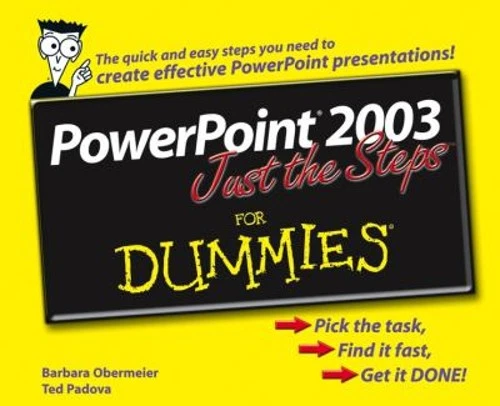
- Offers an easy-to-navigate design featuring a two-column landscape layout loaded with step-by-step instructions and illustrations to help readers get up to speed fast on key PowerPoint tasks-and create effective and striking presentations
- Covers creating a new presentation, resizing or moving an object, duplicating a slide, using the outlining toolbar, and adding notes to a slide
- Shows how to print a presentation, set up a slide show, work with pictures and clip art, color text and objects, modify the slide master, create a template, insert a diagram or chart, add sound and video, and much more
From the Back Cover
Take these steps to build a presentation with pizzazz!Simple steps…
for great results
Insert an Action Button
- Open a presentation in PowerPoint.
- Go to the slide on which you want to insert an action button.
- Choose Slide Show? Action Buttons.
- Choose your desired button from the submenu, as shown in Figure 13-15.
- Click on the slide to place the button.
Insert action buttons (such as Previous, Next, and Play) to help your viewers navigate through your presentation. This is especially helpful for self-running presentations on the Web or in kiosks.
Get ready to
- Create a new presentation
- Insert tables, charts, and sound effects
- Design multiple slide masters
- Add shapes, text effects, and colors
- Scale, crop, and position pictures
- Import Word documents
About the Author
Barbara Obermeier is principal of Obermeier Design, a graphic design studio in Ventura, California. She’s the author of Photoshop CS2 All-in-One Desk Reference For Dummies and has contributed as author, coauthor, or technical editor on numerous books. Barb is also a faculty member in the Visual Communication Department at Brooks Institute.Ted Padova is the author of over 20 computer books. He writes primarily on Adobe Acrobat, Adobe Photoshop, Photoshop Elements, and Adobe Illustrator. He is a nationally and internationally known speaker on Adobe Acrobat and digital imaging.
Reviews
There are no reviews yet.